
Overview
As a reseller, the Purchases section in the Account Center gives you a complete record of all orders placed under your account. This article walks you through how to find a specific invoice using a PO number or invoice ID, identify the matching Payment Due email, and complete payment.
A) Access your purchase history
B) Search and filter purchases
C) View invoice details
D) Locate the correct Payment Due email
We recognize this workflow isn't ideal for resellers managing a high volume of invoices. A Pay Now option will be added directly to the Account Center in a future update, allowing you to pay invoices without leaving the portal. We will share an update when this is available.
A) Access your purchase history
- Sign in to the Account Center at lucensoftware.com with your Billing Owner credentials.
- From the left menu, go to Admin, then Purchases.
- Your full purchase history appears as a list showing each transaction's product, invoice number, order number, date, status, and total.
When contacting support, you can provide order and/or order invoice number to help locate your purchase.
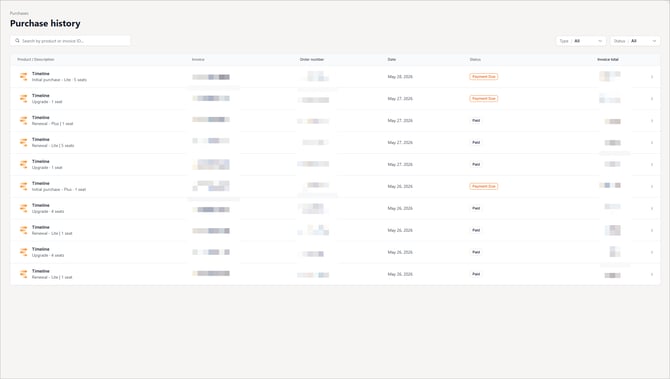
B) Search and filter purchases
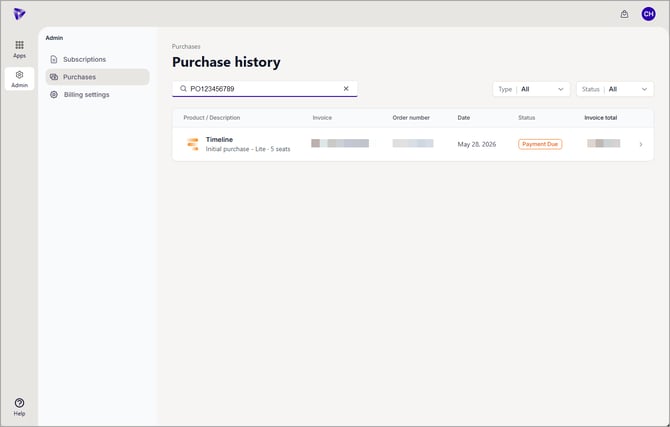
- Use the search bar at the top of the page to find a specific purchase. You can search by:
- Product name
- Invoice ID
- PO number
- You can also use the Type dropdown to filter by purchase type: Initial Purchase, Renewal, or Upgrade.
- The Status dropdown to filter by payment status including Paid or Payment Due.
The search does support partial match (e.g. partial PO Number or partial Invoice Number).
C) View invoice details
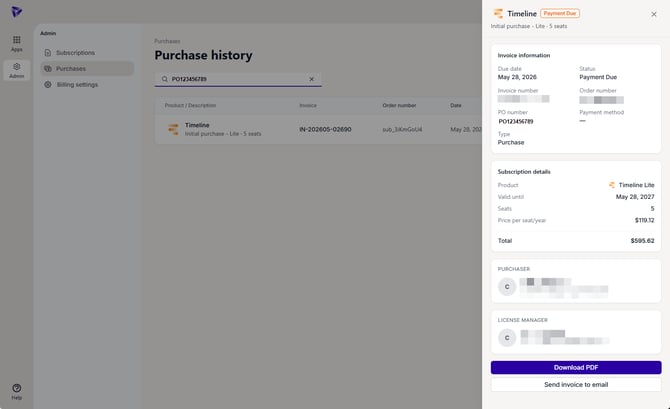
- Click the arrow on any row to open the invoice detail panel.
- The panel shows the following information:
- Invoice information: due date, status, invoice number, order number, PO number, payment method, and type
- Subscription details: product, valid until date, seat count, price per seat/year, and total
- Purchaser and Workspace Admin on record for that subscription
- From the detail panel, click Download PDF to save a copy of the invoice, or click Send invoice to email to send it to the email address for the account.
This sends a copy of the invoice only. It does not resend the original Payment Due email with the Pay Now link.
D) Locate the correct Payment Due email
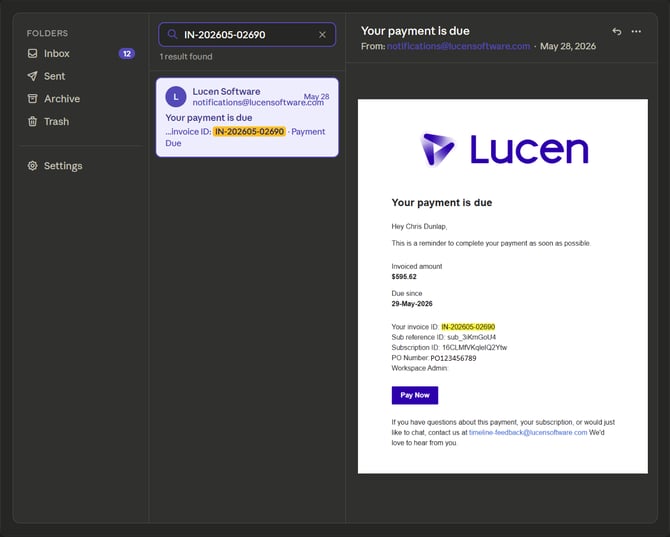
- In Account Center, search for the PO number or invoice ID and note the invoice number for that order.
- In your email inbox, search for that invoice number to find the Payment Due email containing the Pay Now link. Click Pay Now.
- On the payment page, find your invoice, if multiple invoices appear, use Ctrl+F (Windows) or Cmd+F (Mac) to search by invoice number.
- Unselect any other invoices so only yours is selected, then complete the payment.
We know this process isn't ideal for high-volume resellers. We're actively working to simplify the payment experience and will share updates as soon as possible.