
Overview
If your subscription has an outstanding invoice, you can pay it in the Account Center to bring your account current and restore access. This guide shows you how to find the invoice and complete payment, including adding a card if you do not have one on file. Payment is available to Billing Owners.
Step 1: Open your purchases
Sign in to the Account Center at lucensoftware.com with your Billing Owner credentials. From the left menu, go to Admin, then Purchases.
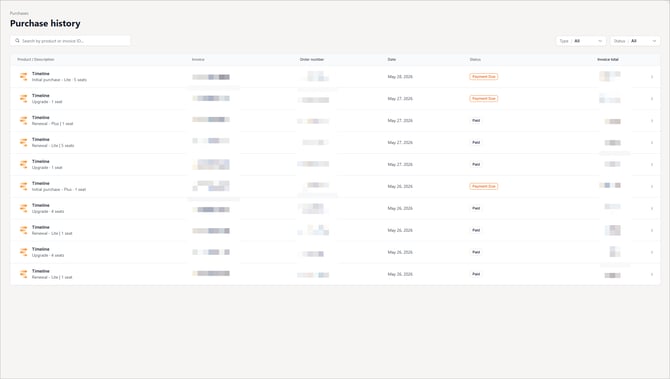
Step 2: Find the invoice
Locate the invoice you need to pay. To find it quickly, use the Status dropdown to filter by Payment Due, or search by invoice ID.
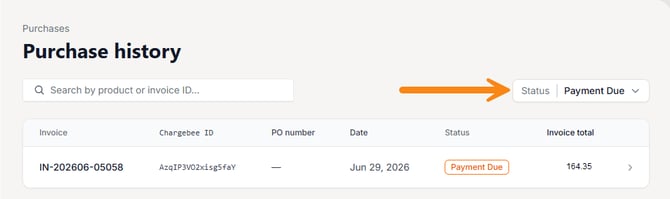
Step 3: Open the invoice
Click the arrow on the invoice row to open the invoice details, where you can review the amount due and status.
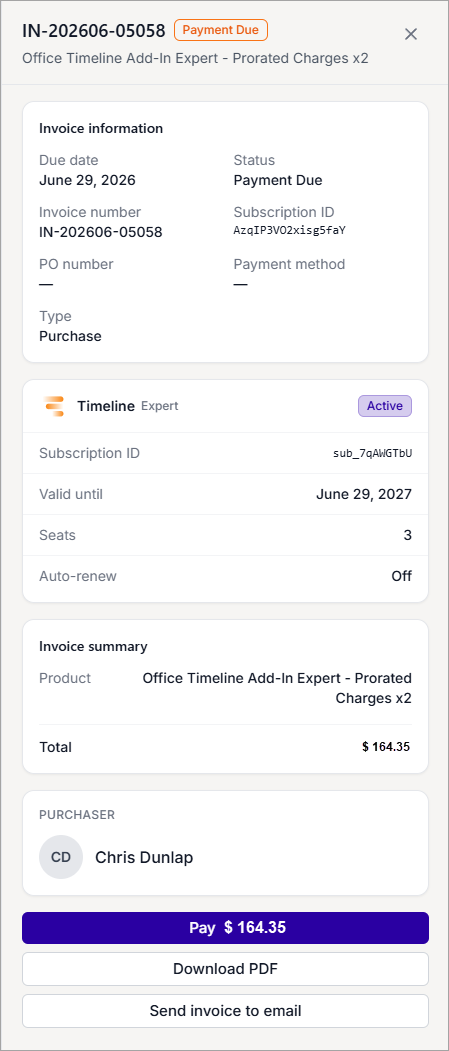
Step 4: Pay the invoice
Click Pay. Choose your saved card, or select Pay with a new card and enter your card details, then complete payment. You receive an email confirmation once the invoice is paid.
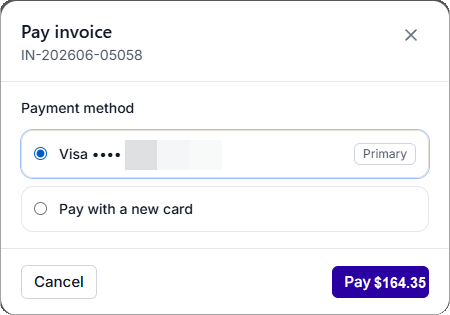
For help adding a card, see Managing your saved payment methods in Account Center.