
Overview
There are a few ways to place an order for Lucen Timeline. This article covers the most common scenarios and the steps to complete each one. Some actions are only available to Billing Owners. See Subscription Roles for more information.
Use the links below to jump to the scenario you need.
A) Purchase a new subscription
B) Renew a subscription
C) Add seats to a subscription
D) Upgrade your plan
A) Purchase a new subscription
Step 1: Choose your plan
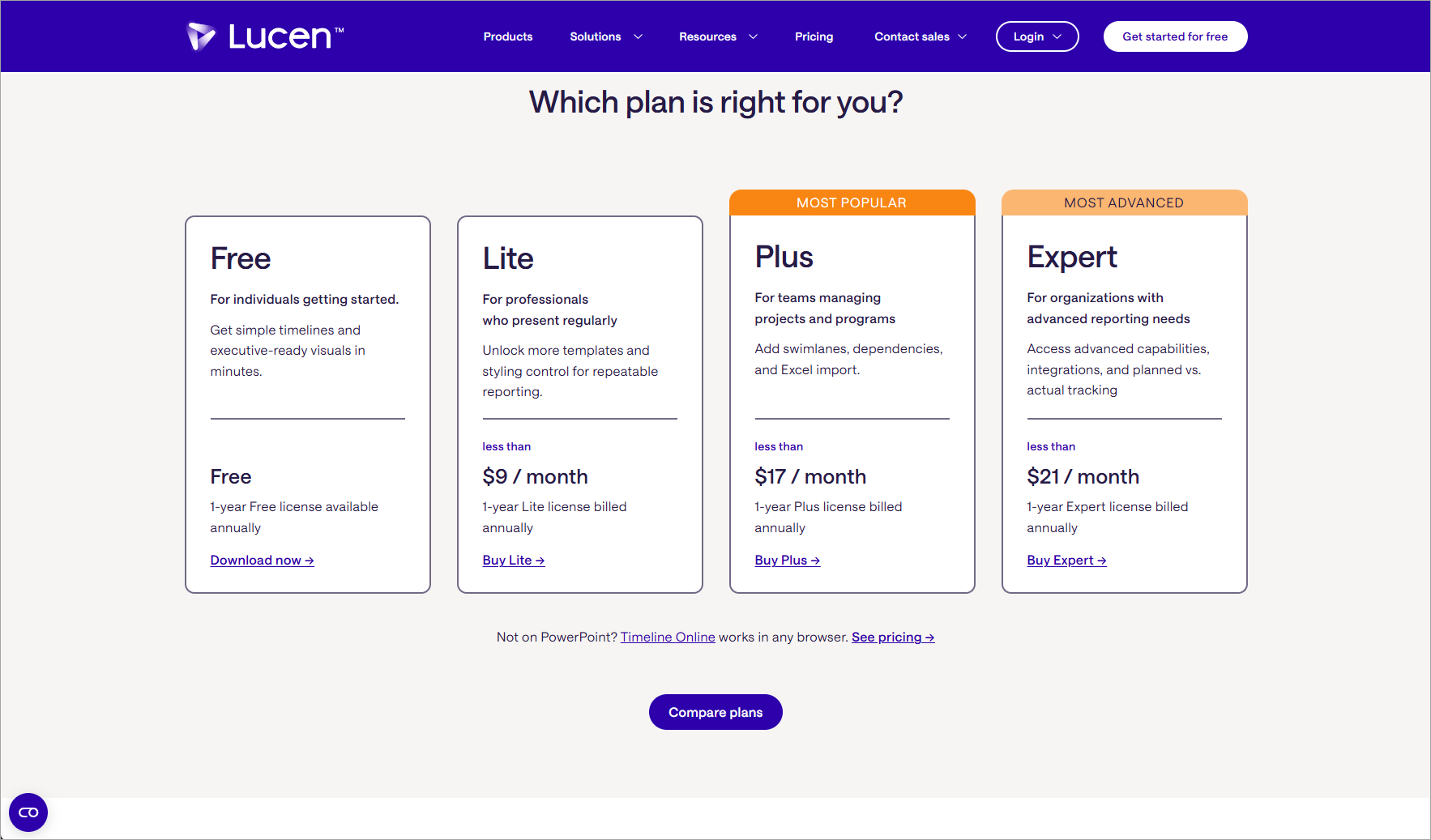
Go to lucensoftware.com and navigate to the purchase page. Choose your plan: Expert, Plus, or Lite, then click Buy to add it to your cart.
Step 2: Log in and open your cart
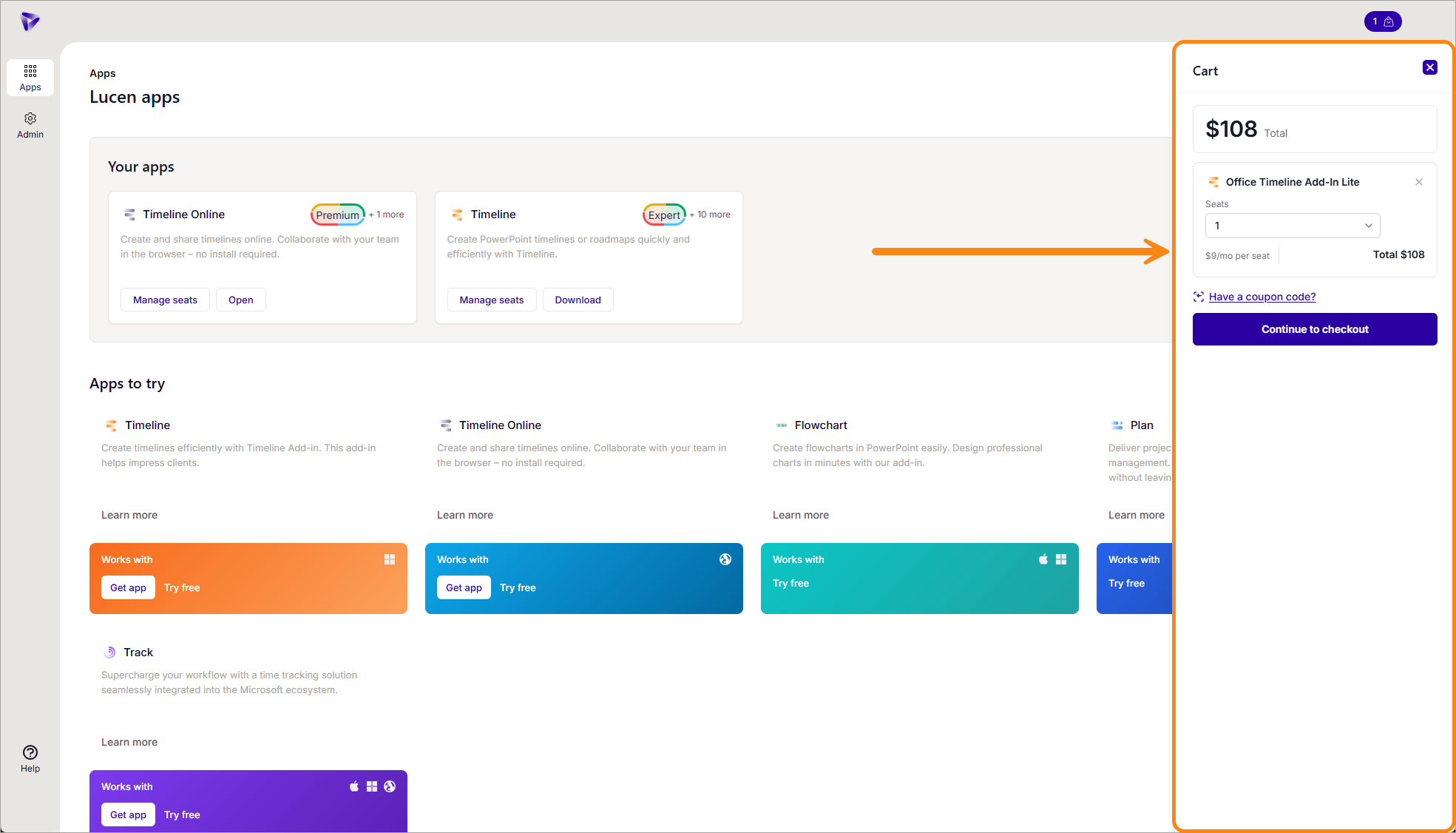
After you log in, your cart opens in the right panel of the Account Center. Select the number of seats and review the total. Click Continue to checkout.
Step 3: Review and complete your order
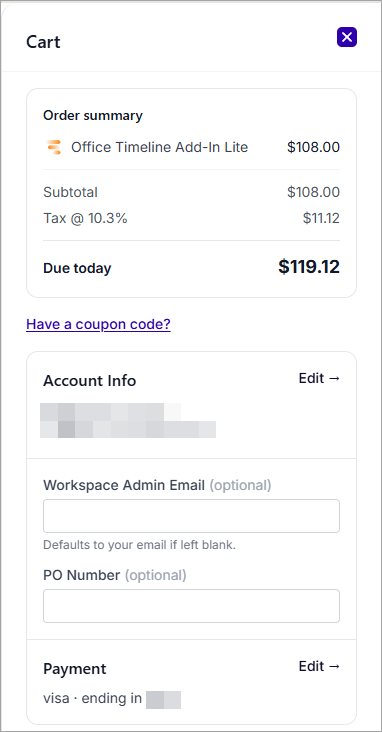
- Review the order summary, including the subtotal, tax, and total Due today.
- Under Account Info, confirm your billing details, or click Edit to update your name, address, billing country, and ZIP/postal code, then click Done.
- Optionally, enter a Workspace Admin Email to set who manages the subscription and a PO Number.
While you can edit your billing address during checkout, your changes will only be applied if you complete the order.
Step 4: Choose your payment method
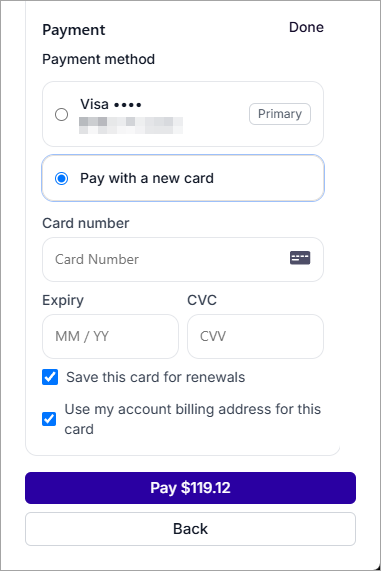
- Under Payment, click Edit to expand the payment options.
- Select your Primary card, or choose Pay with a new card and enter the Card number, Expiry, and CVC.
- When you add a new card, you can select Save this card for renewals and Use my account billing address for this card. Click Done.
Step 5: Complete your order
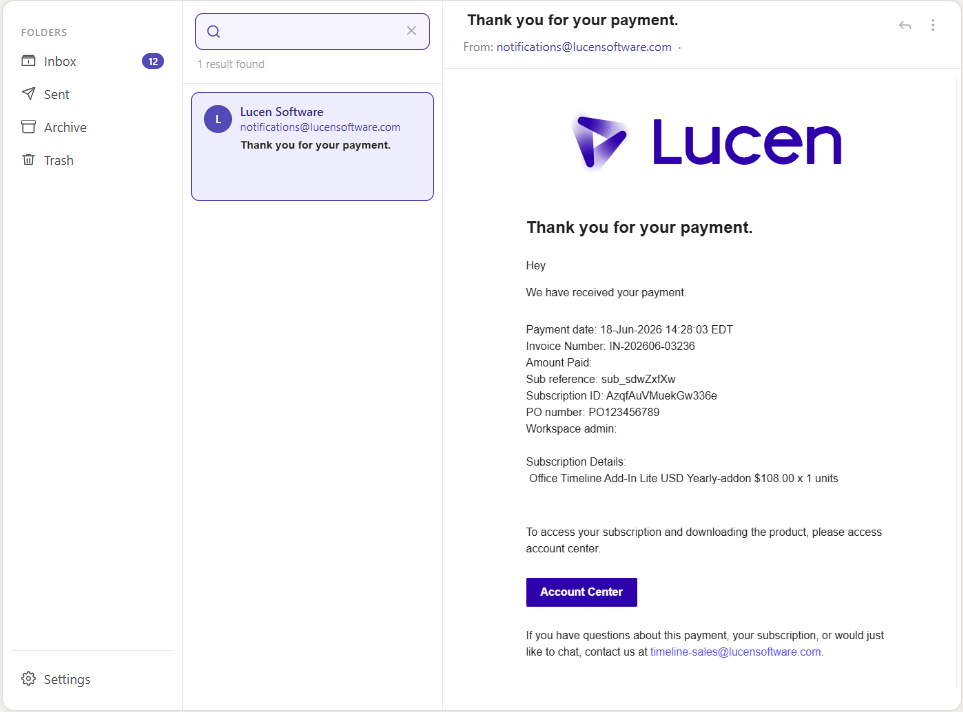
Click Pay $[amount] to complete your order. After your order is confirmed, you receive an email with your invoice and activation instructions.
B) Renew a subscription
Step 1: Open the subscription
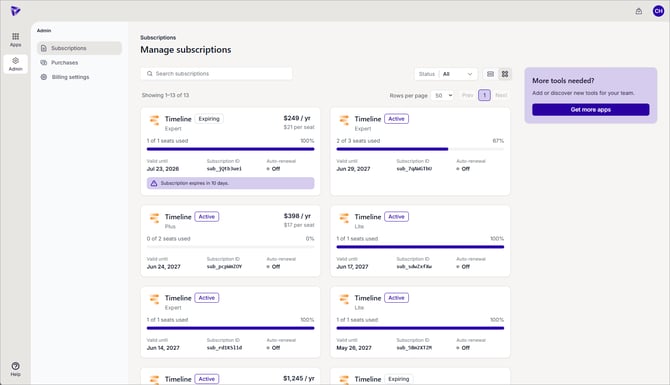
Sign in to the Account Center at lucensoftware.com with your Billing Owner credentials. From the left menu, go to Admin, then Subscriptions, and select the subscription you want to renew.
Step 2: Start the renewal
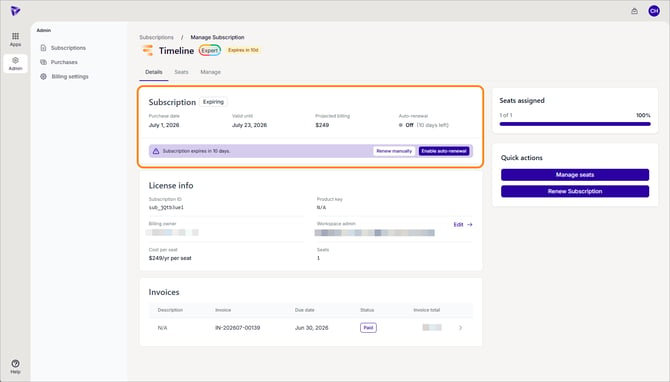
On the Details tab, click Renew manually in the expiry banner, or click Renew Subscription under Quick actions. Both open the same renewal panel.
Step 3: Customize your renewal
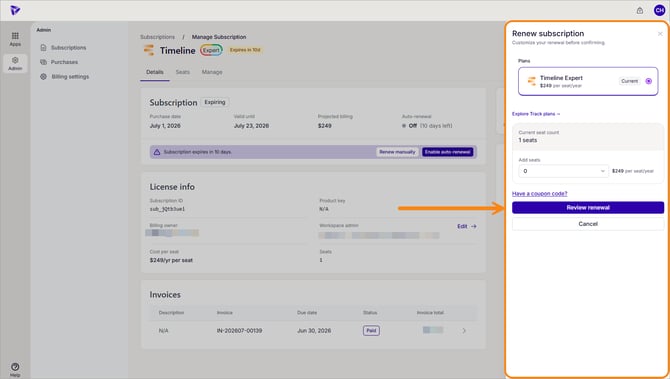
In the Renew subscription panel, your current plan and seat count are shown. To add seats, choose a number under Add seats (renewal lets you add seats, not remove them). If you have a coupon, click Have a coupon code?. Click Review renewal.
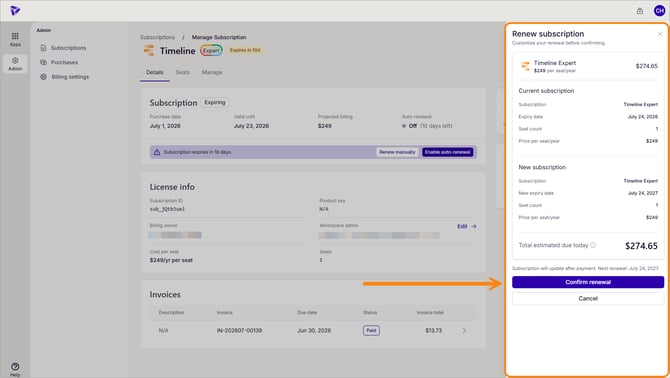
Step 4: Review the renewal
Compare your current subscription with the new subscription, including the new expiry date, seat count, and total due today. Click Confirm renewal.
Step 5: Complete payment
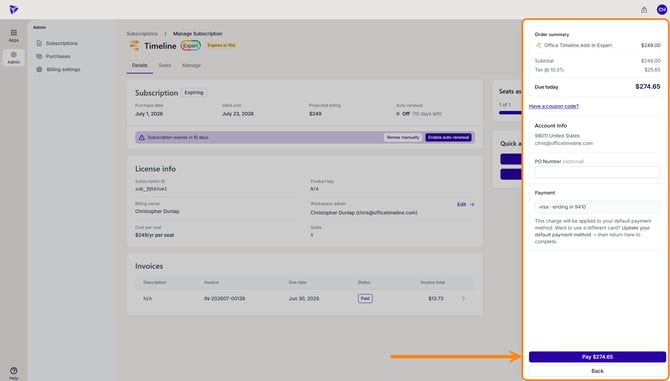
Review the order summary, including the subtotal, tax, and total Due today. Your Account Info and Payment method are shown here but can't be edited on this screen. The charge applies to your default payment method; to pay with a different card, update your default payment method first, then start the renewal again. Add a PO Number if you need one (optional), then click Pay $[amount].
After payment, your subscription updates and you receive a confirmation. If you renew early, your subscription shows a Renewed status until the new term begins, then it changes to Active.
To renew automatically instead, click Enable auto-renewal on the Details tab. To turn it back off, see How to Cancel Auto-renewal for My Subscription.
This charge will be applied to your default payment method. Want to use a different card? Update your default payment method → then return to complete.
C) Add seats to a subscription
Step 1: Open the subscription
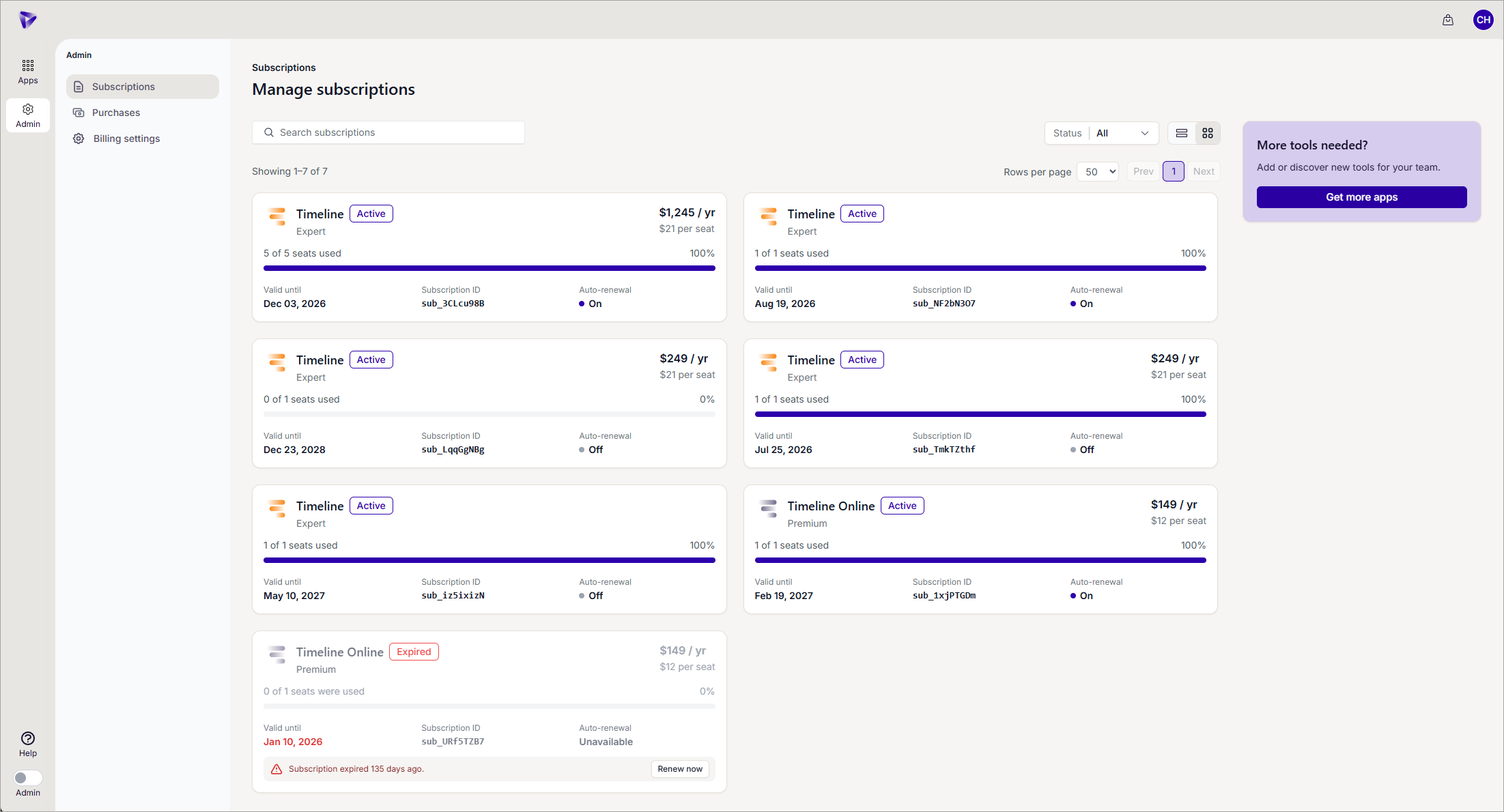
Sign in to the Account Center at lucensoftware.com with your Billing Owner credentials. From the left menu, go to Admin, then Subscriptions, and select the subscription.
Step 2: Open the upgrade options
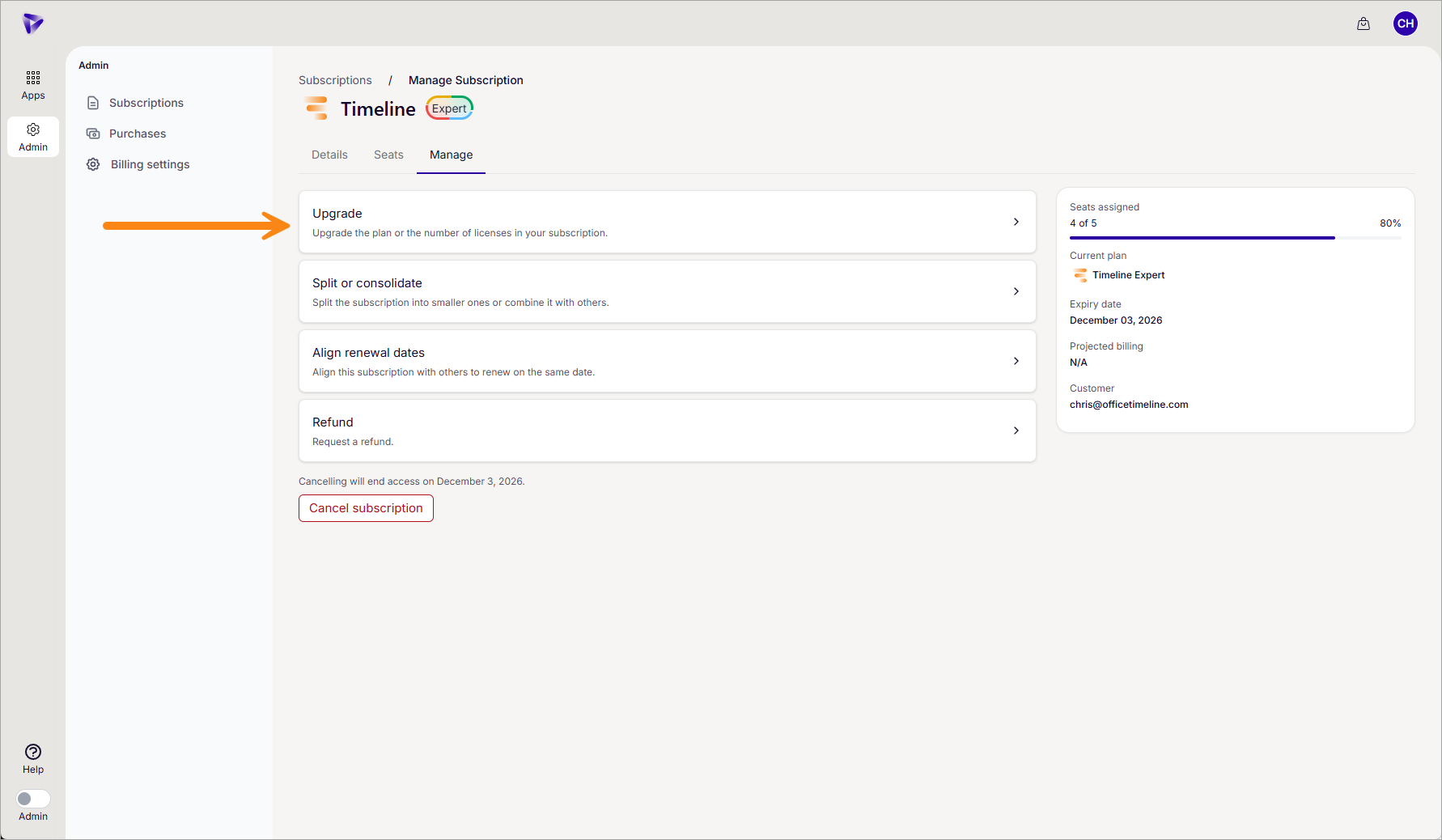
Click the Manage tab, then select Upgrade.
Step 3: Set the number of seats
Enter the number of seats you want to add and click Review changes.
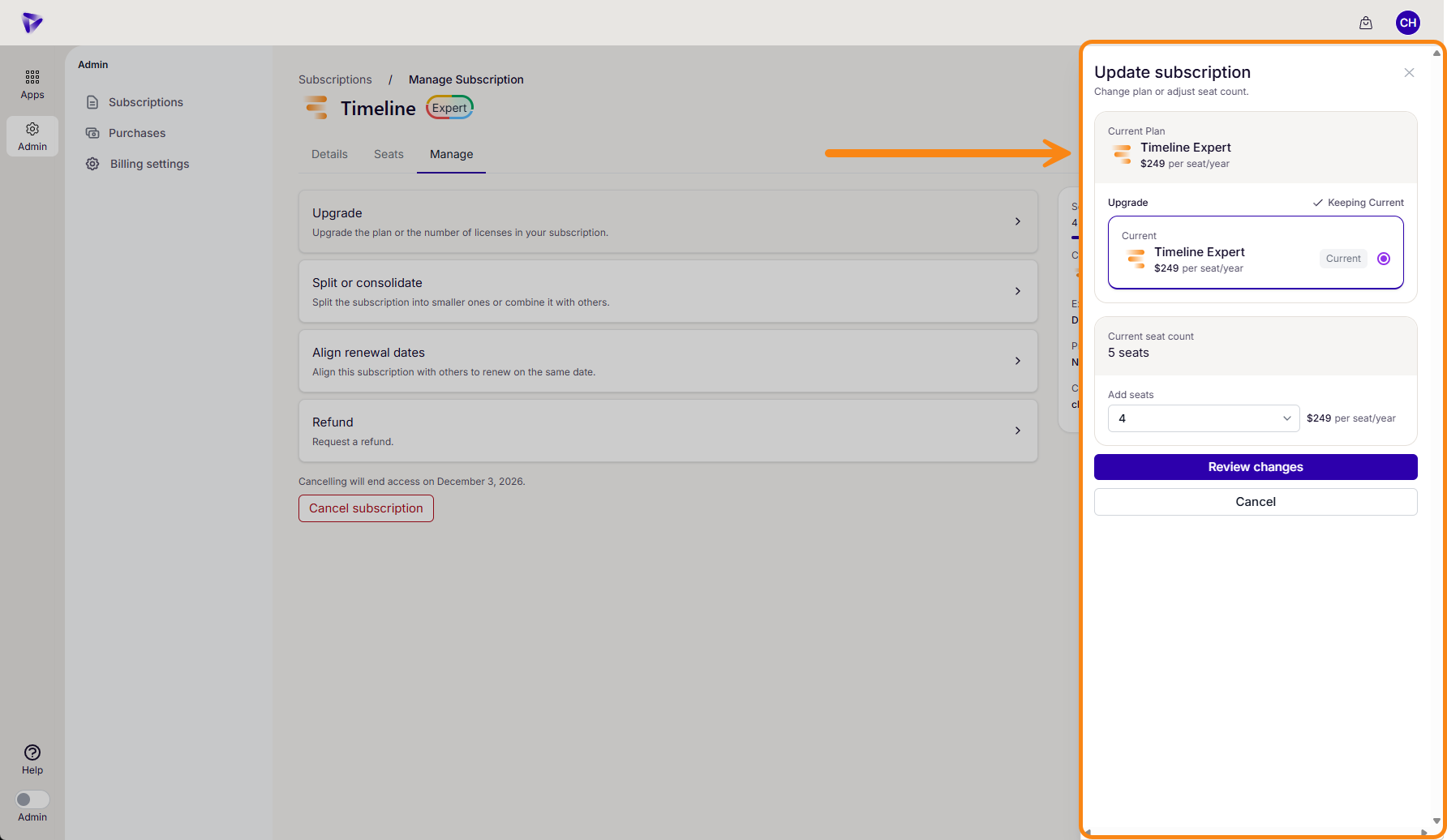
This step allows you to also upgrade your plan if needed.
Step 4: Confirm your changes
Review the prorated total, then confirm your changes.
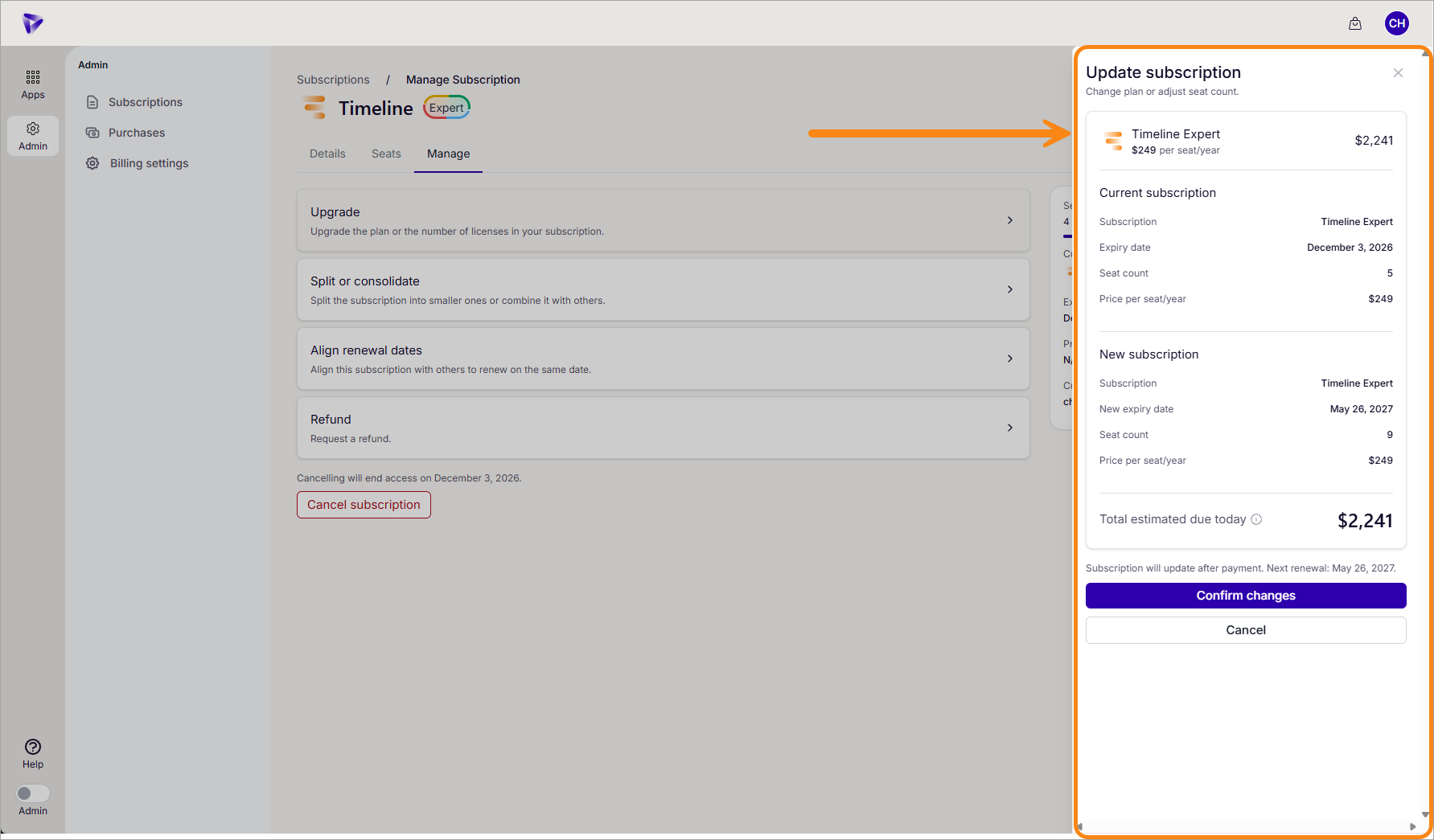
Step 5: Review and complete your order
Under Payment, click Edit to expand the payment options. Select your Primary card, or choose Pay with a new card and enter the Card number, Expiry, and CVC. When you add a new card, you can select Save this card for renewals and Use my account billing address for this card. Click Done, then Pay $[amount].
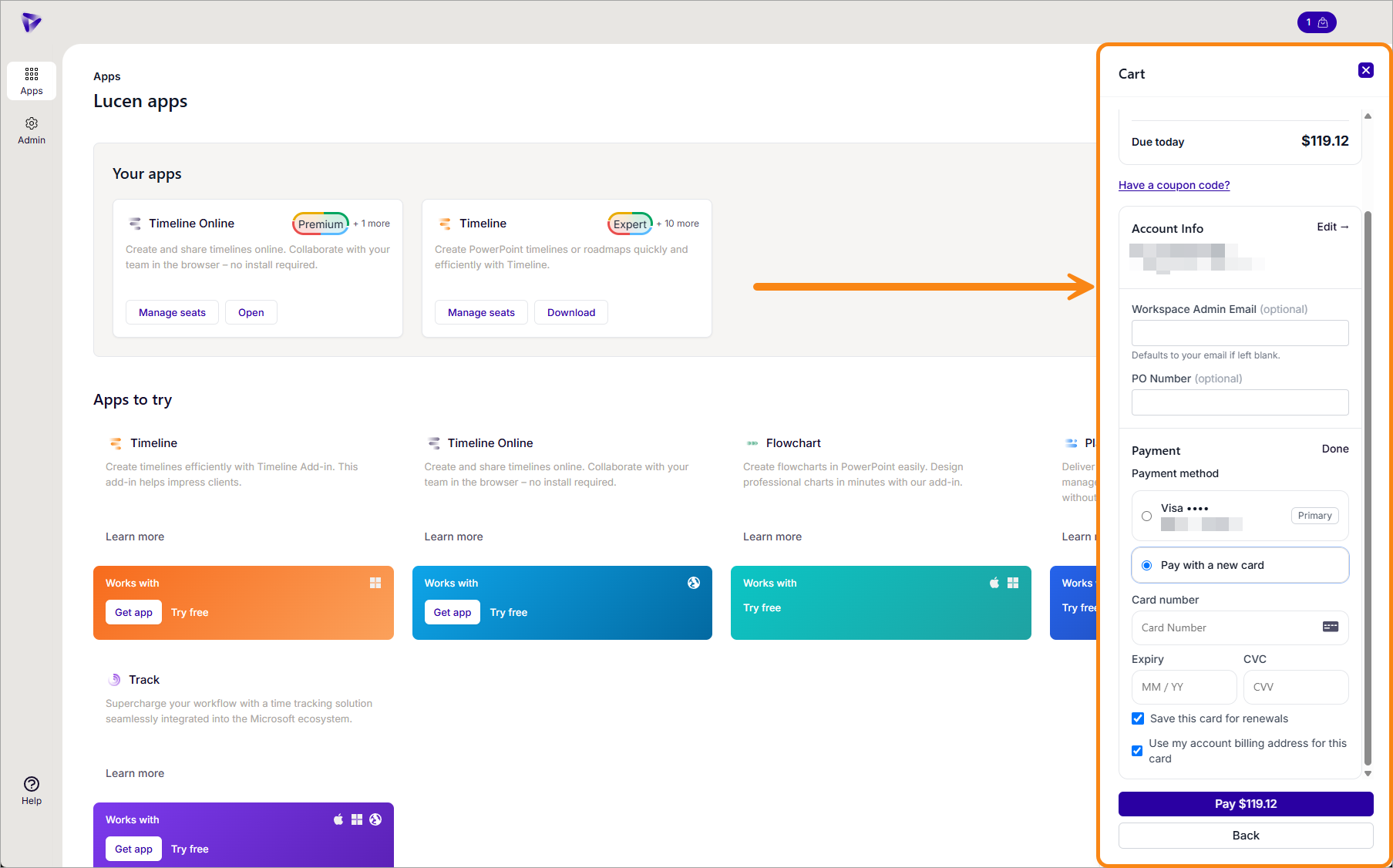
After your order is confirmed, you will receive an email with your invoice and activation instructions.
D) Upgrade your plan
Step 1: Open your subscription
Sign in to the Account Center at lucensoftware.com with your Billing Owner credentials. From the left menu, go to Admin, then Subscriptions, and select the subscription.
Step 2: Open upgrade options
Click the Manage tab, then select Upgrade.
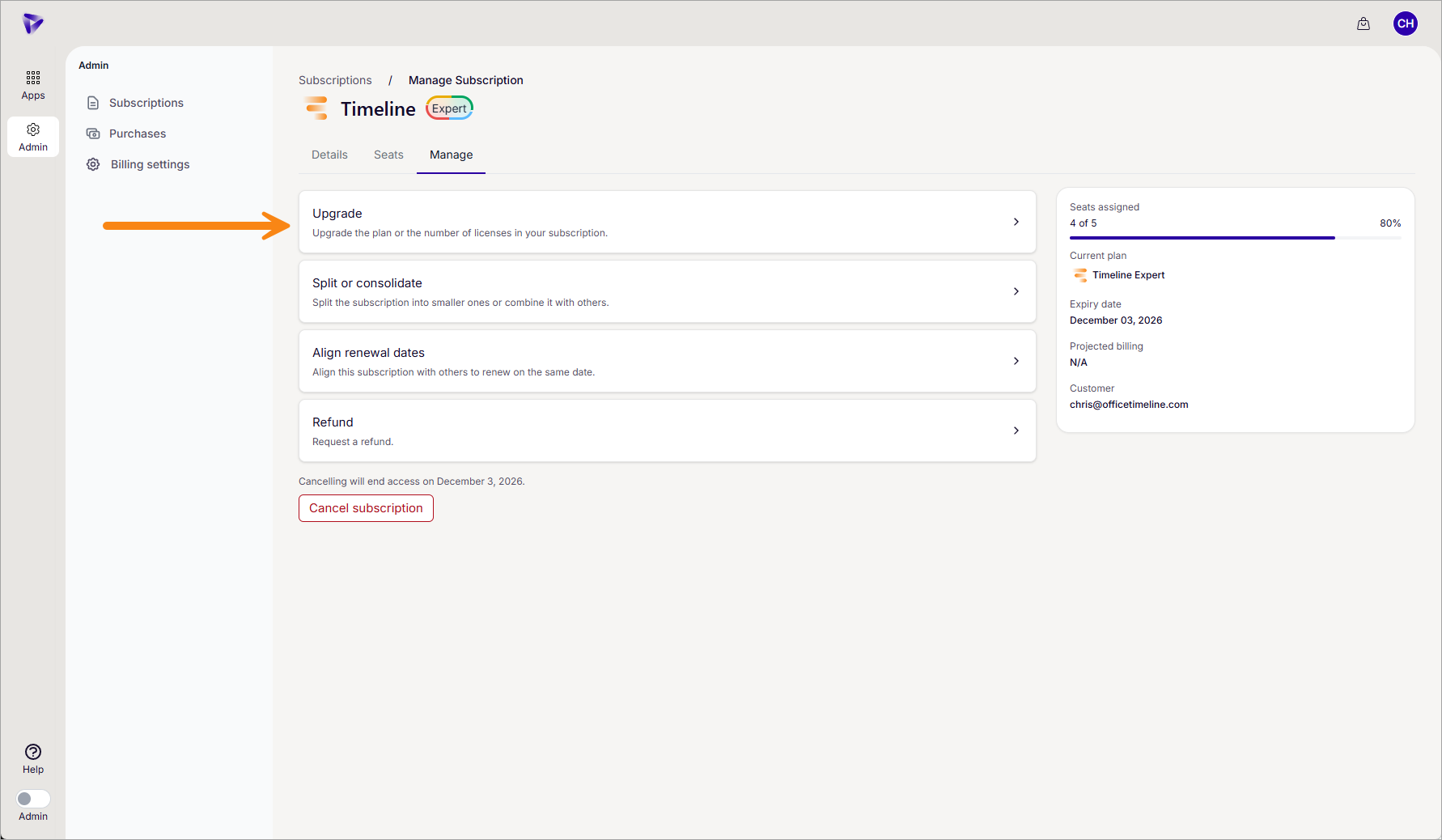
Step 3: Choose your new plan
Choose your new plan, then click Review changes.
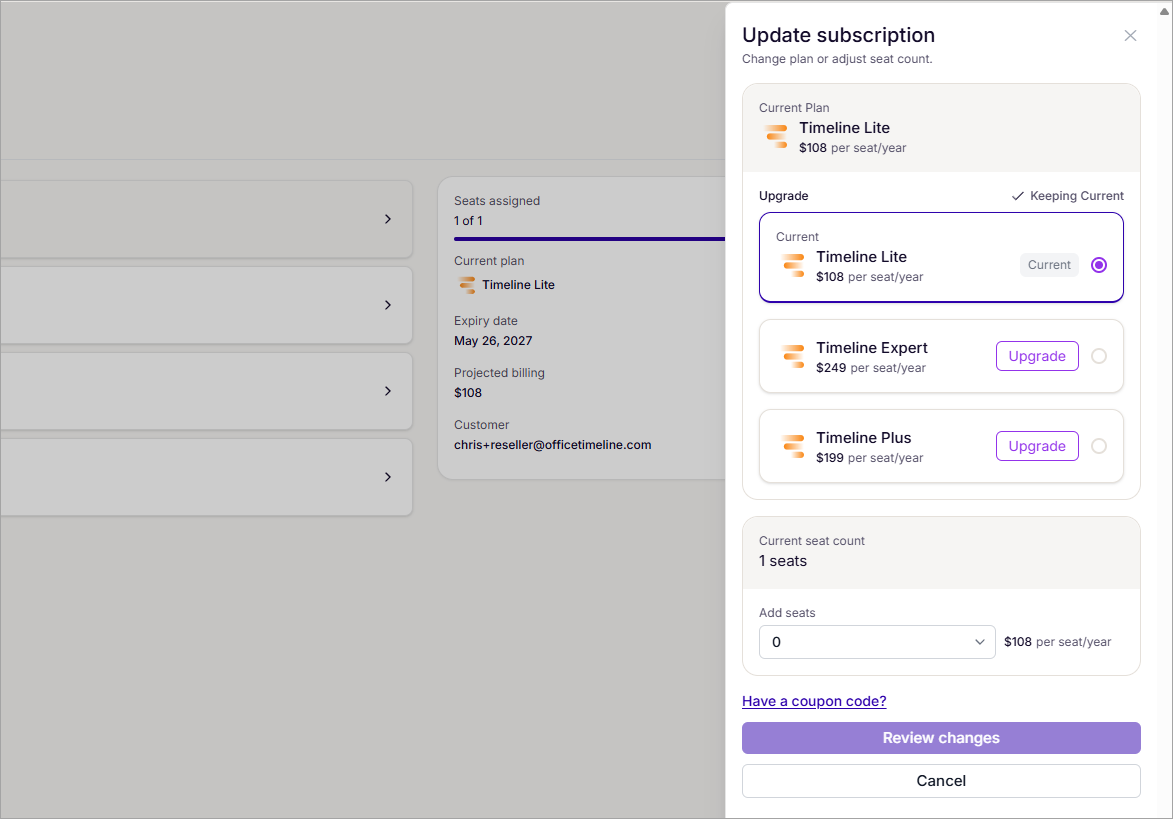
This step allows you to also add seats if needed.
Step 4: Confirm your changes
Review the prorated total and any applicable credits, then confirm your changes.
Step 5: Review and complete your order
Under Payment, click Edit to expand the payment options. Select your Primary card, or choose Pay with a new card and enter the Card number, Expiry, and CVC. When you add a new card, you can select Save this card for renewals and Use my account billing address for this card. Click Done, then Pay $[amount].
After your order is confirmed, you will receive an email with your invoice and activation instructions.